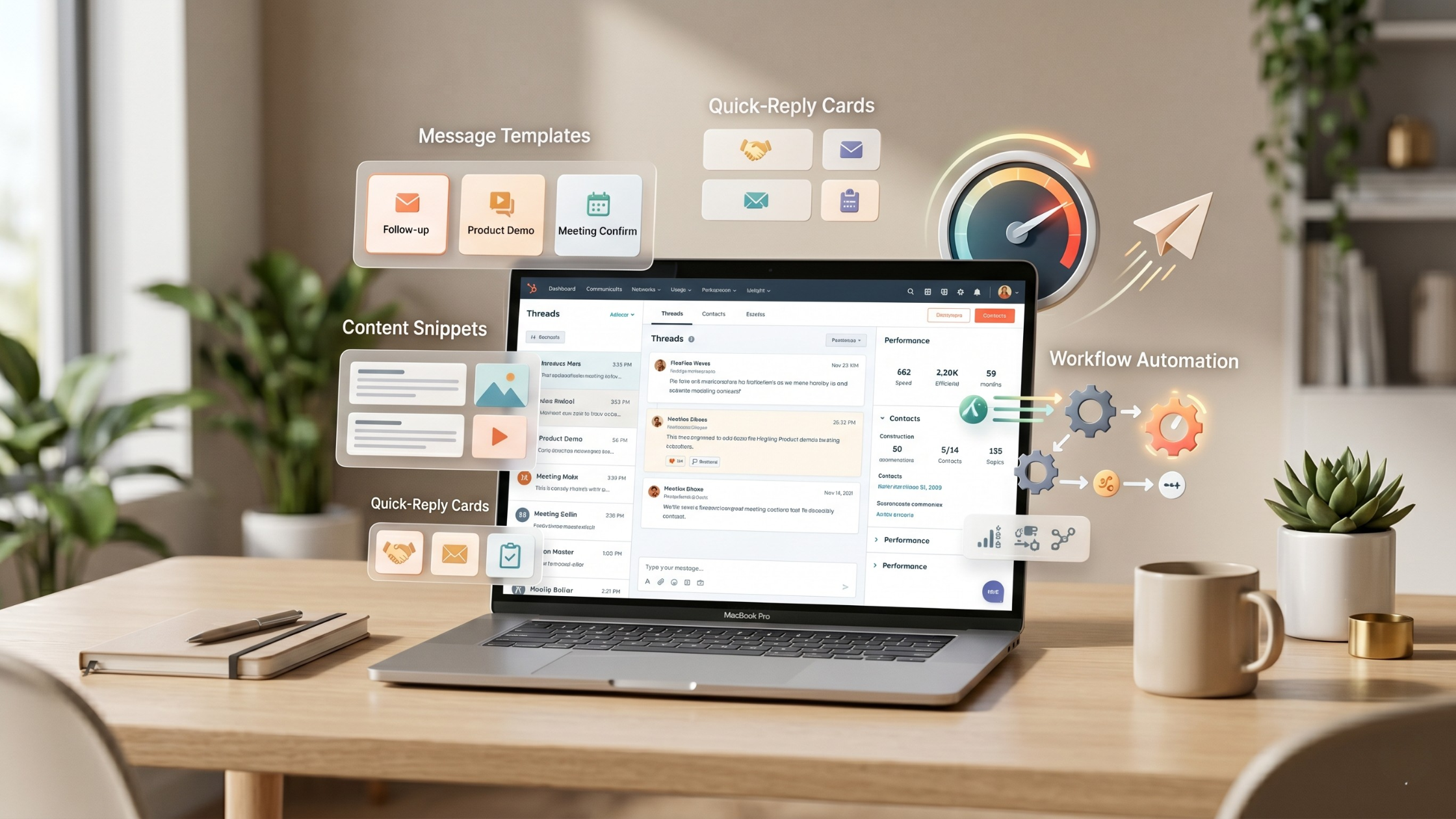
Pro Tip: Leveraging Snippets and Templates for Faster Communication
Every sales rep has been there. You’ve just finished a call, you have three follow-up emails to send, two proposals to draft, and a prospect waiting on a response you promised “right away.” You open a blank email and stare at it. You’ve written this exact message a hundred times before — but here you are, writing it again from scratch.
There’s a better way. HubSpot’s Snippets and Templates are two of the most underutilized features in the entire platform — and once you start using them properly, you’ll wonder how you ever managed without them. This guide breaks down exactly what they are, how they differ, and how to use both to communicate faster, more consistently, and more professionally across your entire team.
What Are HubSpot Snippets and Templates — and Why Do Most Teams Ignore Them?
Before diving into how to use these features, it’s worth understanding why so many HubSpot users overlook them entirely.
Most teams discover Snippets and Templates by accident — buried somewhere in the Sales Tools menu — and assume they’re just basic shortcuts not worth the setup time. That assumption is costing them hours every week.
HubSpot Snippets are short, reusable blocks of text that you can insert into emails, notes, and chat messages with a simple keyboard shortcut. Think of them as your personal library of go-to phrases, standard responses, and frequently used information — available instantly, anywhere you’re typing in HubSpot.
HubSpot Templates are full pre-written email drafts — complete with subject lines, body copy, and personalization tokens — that your team can access and send directly from the CRM. They live in a shared library, which means everyone on your team is working from the same approved, on-brand messaging.
Together, they solve two of the biggest communication problems in sales and customer success: speed and consistency.
The Real Cost of Writing Everything From Scratch
It doesn’t feel like a big deal to write a follow-up email from scratch. Until you do it forty times a week.
Research consistently shows that sales reps spend a significant portion of their day on administrative tasks — and repetitive writing is one of the biggest culprits. Every minute spent retyping a meeting confirmation, a pricing overview, or a “just checking in” email is a minute not spent selling, building relationships, or closing deals.
Beyond time, there’s a consistency problem. When every team member writes their own version of the same email, you end up with wildly different quality levels, off-brand messaging, and missed opportunities to reinforce your value proposition at key moments in the buyer journey. One rep’s follow-up is polished and persuasive. Another’s is rushed and generic. The prospect experience suffers — and so does your conversion rate.
Snippets and Templates fix both problems at once.

HubSpot Snippets: Small Shortcut, Big Impact
What Snippets Are Best For
Snippets work best for short, repeatable pieces of text that come up constantly across different types of communication. They’re not full emails — they’re the building blocks that make emails faster to write and more consistent in tone.
Great use cases for Snippets include:
- Standard introductions — “Hi [First Name], thanks for taking the time to connect with us — we work with businesses across the Philippines to help them scale smarter using HubSpot and intelligent automation.”
- Pricing or service overviews — a quick two-sentence summary of a specific service that you find yourself explaining repeatedly
- Objection responses — pre-written, thoughtful responses to the most common objections your team faces
- Meeting confirmation language — standard copy for confirming calls, including dial-in details or calendar link text
- Call-to-action phrases — consistent CTAs that always invite the next step in the same clear, professional way
- Internal notes — standard language for logging call outcomes or deal updates in your CRM records
How to Create a Snippet in HubSpot
- Go to Conversations > Snippets in your HubSpot navigation
- Click Create Snippet in the top right
- Give your Snippet a clear, searchable name — this is how you’ll find it later
- Add a shortcut — a short keyword you’ll type preceded by a
#to trigger the Snippet - Write your Snippet text — keep it focused and reusable
- Click Save
To use it, simply type # followed by your shortcut keyword anywhere you’re composing in HubSpot, and the Snippet will appear as an option to insert instantly.
Snippet Best Practices
- Keep names descriptive. A Snippet called “intro” tells you nothing. “intro-smb-philippines” tells you exactly when to use it.
- Build a team library, not just personal ones. Snippets can be shared with your team — use this to standardize your best responses across everyone.
- Review and refresh quarterly. Snippets go stale. Pricing changes, services evolve, and messaging improves. Schedule a quarterly review to keep your library current.
- Don’t over-Snippet. If a piece of text needs heavy personalization every time, it’s not a good Snippet candidate. Snippets work best for language that stays 80–90% the same across uses.

HubSpot Templates: Your Team’s Shared Messaging Playbook
What Templates Are Best For
While Snippets are building blocks, Templates are complete emails — ready to send with minimal editing. They shine in situations where the same type of email gets sent repeatedly at specific points in the sales or customer success process.
The best Templates to build first are the ones your team sends most often:
- First outreach email — your initial cold or warm introduction
- Post-meeting follow-up — a structured recap of what was discussed and agreed next steps
- Proposal send email — the covering email that accompanies a quote or proposal
- No-response follow-up sequence — a series of progressively lighter check-in emails for prospects who’ve gone quiet
- Onboarding welcome email — the first message a new client receives after signing
- Referral request — a warm, easy-to-send email asking satisfied clients for introductions
- Re-engagement email — for leads or clients who’ve gone cold over a longer period
How to Create a Template in HubSpot
- Go to Conversations > Templates in your HubSpot navigation
- Click New Template > Start from scratch (or choose from HubSpot’s built-in options)
- Write your subject line — use personalization tokens like
{{contact.firstname}}to keep it feeling personal - Write your email body — use a mix of fixed language and personalization tokens
- Add placeholder brackets for sections that need manual customization — e.g., [insert specific pain point discussed]
- Set the sharing setting to Team so everyone can access it
- Click Save Template
To use a Template, open a new email in any HubSpot contact, company, or deal record, click the Templates icon in the email toolbar, and select the one you need. It populates instantly — all you do is review, personalize where needed, and send.
Template Best Practices
- Always leave room for personalization. The best Templates are 70% fixed, 30% personalized. Use brackets like [mention their industry] or [reference the challenge they shared] as prompts to add that human touch before sending.
- Track your Template performance. HubSpot shows you open rates and click rates for every Template. Use this data to identify which ones are performing and which ones need rewriting.
- Name Templates by use case and stage. For example: “01 — First Outreach — SMB” or “04 — Post-Demo Follow-Up.” Numbering them by sequence makes them easier to find under pressure.
- Assign Template ownership. For teams with multiple reps, designate someone as the Template library owner — responsible for keeping them updated, removing outdated versions, and adding new ones as messaging evolves.
- Don’t let Templates make you lazy. A Template is a starting point, not a finished product. Always read it before sending and make sure it actually fits the specific person and situation.

Using Snippets and Templates Together
The real power comes when you use both features in combination — Snippets for the small reusable pieces, Templates for the full email structure.
Think of it this way: your Template provides the frame of the house. Your Snippets are the furniture you move in. A post-demo follow-up Template might have a fixed structure — opening, recap, next steps, CTA — but you drop in a Snippet for your standard pricing overview, another for your calendar link text, and another for your company credibility line. The result is a fully personalized, professional email assembled in under two minutes.
This combination is especially powerful for:
- Onboarding new team members — instead of shadowing experienced reps for weeks, new hires can access the team’s best messaging from day one
- Maintaining brand consistency — every email that leaves your team reflects the same quality and tone, regardless of who sent it
- Scaling outreach — as your team grows, your communication quality grows with it rather than fragmenting
A Quick-Start Action Plan
If you’re starting from scratch, don’t try to build your entire library in one sitting. Here’s a practical approach to get up and running fast:
Week 1 — Start with what hurts most Identify the three emails your team sends most often and build Templates for each one. These will deliver the fastest ROI on your time investment.
Week 2 — Build your Snippet library Collect the phrases, intros, and standard responses your team uses repeatedly. Build 5–10 Snippets to cover the most common ones.
Week 3 — Share and standardize Set all Templates and Snippets to Team access. Run a short team session (even 20 minutes) to walk everyone through how to find and use them.
Ongoing — Review and improve Check Template performance data monthly. Refresh content quarterly. Add new Templates and Snippets as your business evolves.
Key Takeaways
Speed and consistency aren’t opposites of personalization — they’re what make personalization possible at scale. When your team isn’t burning time rewriting the same emails from scratch, they have more time to add the personal touches that actually move deals forward.
HubSpot Snippets and Templates are not shortcuts that make communication feel generic. Used correctly, they’re the foundation of a communication system that makes every interaction faster, sharper, and more consistent — from the first outreach to the final onboarding welcome.
- Snippets handle the small, repeatable building blocks of communication
- Templates handle full emails at every stage of the customer journey
- Together, they eliminate wasted time, raise quality standards, and scale your team’s best messaging across every rep
- The setup investment is small. An afternoon of work building your core library pays back in hours saved every single week going forward
The best time to build your Snippets and Templates library was when you first got HubSpot. The second best time is today.