5 Things You Didn't Know the HubSpot Mobile App Could Do
It’s not just a way to check notifications between meetings — here’s what you’re probably missing.
Most people who live in HubSpot every day do it from a laptop. The mobile app tends to get treated as an afterthought — something you open to approve a deal or glance at a notification, then close again. Fair enough: a lot of CRM mobile apps are genuinely limited compared to their desktop counterparts, and HubSpot’s is no exception on some fronts.
But underneath that low-key reputation, the app has quietly become a lot more capable — especially with AI assistant features now built directly into the mobile experience. If you’re in sales, business development, or anywhere your job involves meeting people, calling prospects, or walking into rooms without a laptop, there’s a good chance you’re sitting on features that could be saving you real time.
Here are five worth knowing about.
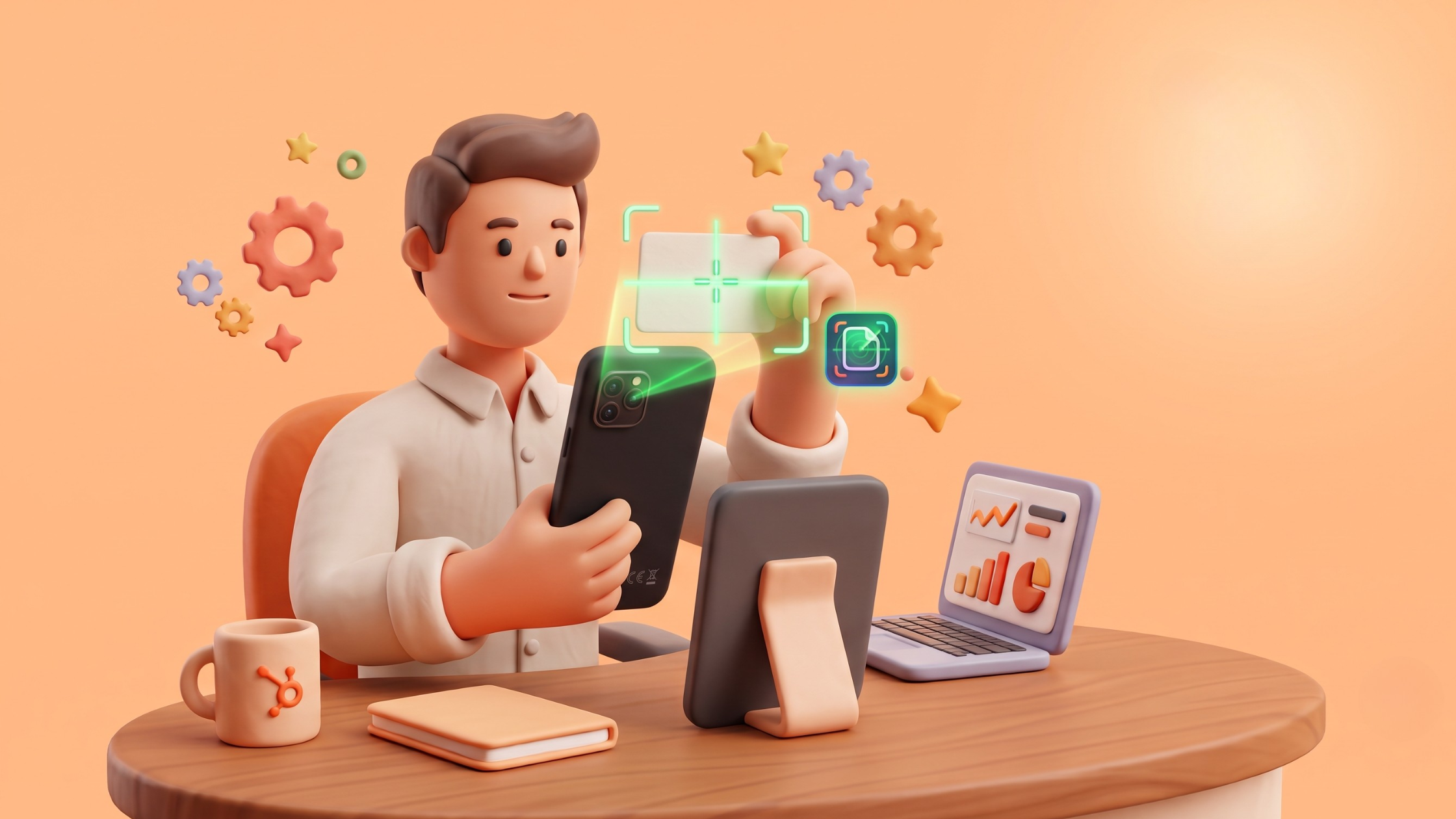
1. Scan a Business Card Straight Into a Contact Record
Start with the classic: HubSpot’s mobile app includes a free, unlimited business card scanner. Open the app, tap the create icon, choose Scan card or QR code, and snap a photo. Machine learning reads the card and auto-fills fields like name, title, company, phone, and email — you review, correct anything that’s off, and save. The contact appears instantly, on both mobile and desktop.
A nice detail: the scanning technology is designed to get more accurate over time, rather than repeating the same misread indefinitely.
Best for: conferences, trade shows, and any moment you meet someone new away from your desk.

2. Let Breeze Assistant Brief You Before a Meeting
This is one of the newer additions, and arguably the most useful. From the Meeting Detail Page in the mobile app, you can ask Breeze — HubSpot’s built-in AI assistant — to generate an on-demand briefing pulled from CRM activity and deal context. Walking into a client meeting? Ask for a summary of the account before you’re through the door, instead of scrambling to remember the last three email threads.
Best for: back-to-back meeting days, account handoffs, and anyone who’s ever walked into a call blind.

3. Listen to Call Recordings and Read Transcripts, Wherever You Are
If your team records sales calls, you don’t need to be at your desk to review one. The mobile app lets you check dashboards and reports, and — notably — listen to call recordings or read transcripts on the go. Combined with caller ID linked directly to your CRM, you’ll know who’s calling and why before you even answer.
Best for: prepping for a callback, reviewing a call you missed, or catching up on a colleague’s conversation before a handoff.
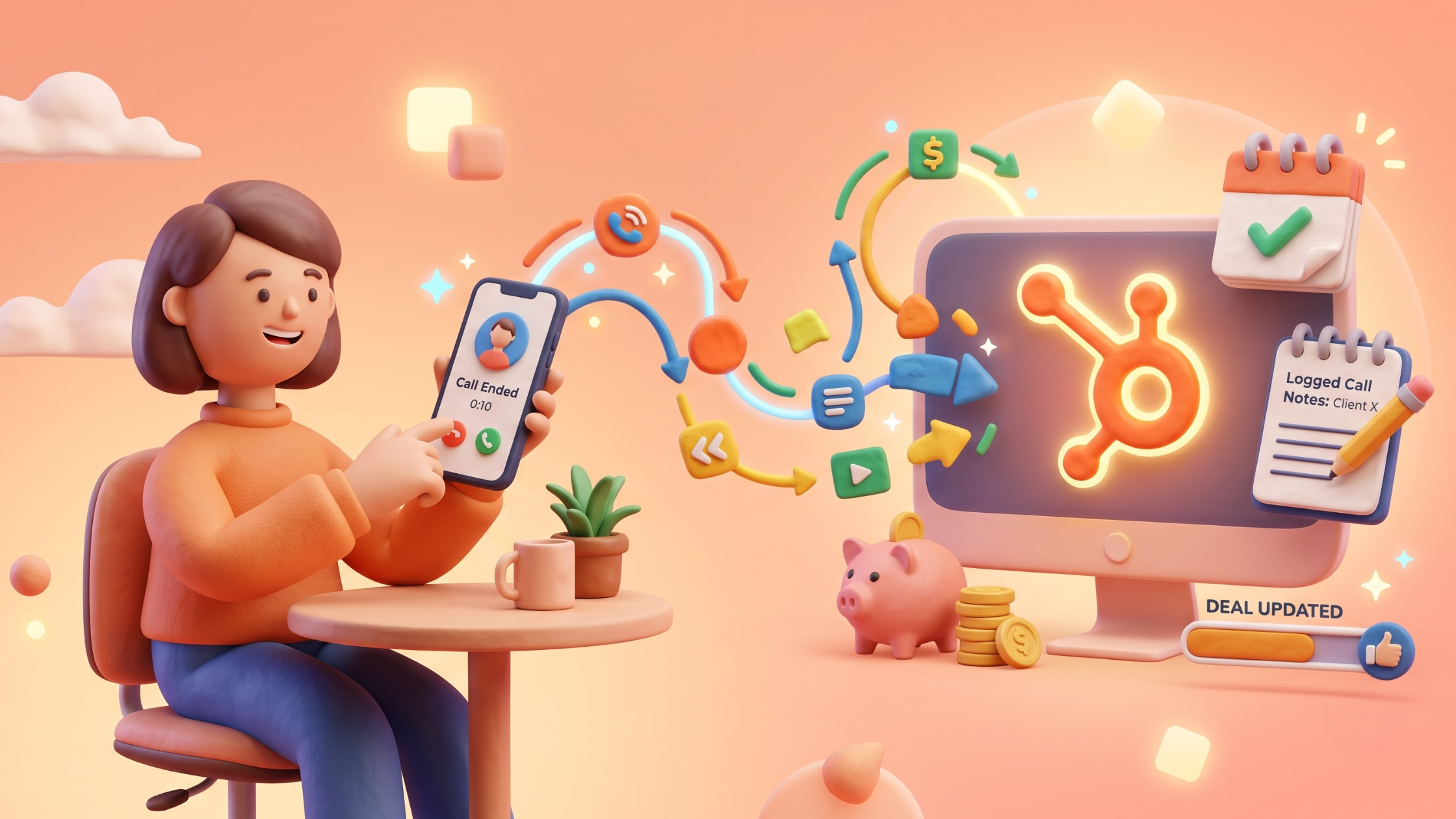
4. Log Notes and Update Deals the Moment a Call Ends
The old workflow: finish a call, forget half of what was said by the time you’re back at your laptop, and log a vague note an hour later. The mobile app closes that gap — you can update deal stages, assign tasks, and log notes immediately after hanging up, right from the call screen. Small habit, but it noticeably improves data quality across a sales team.
Best for: SDRs and BDRs making a high volume of calls who need the CRM to stay accurate without extra admin time.
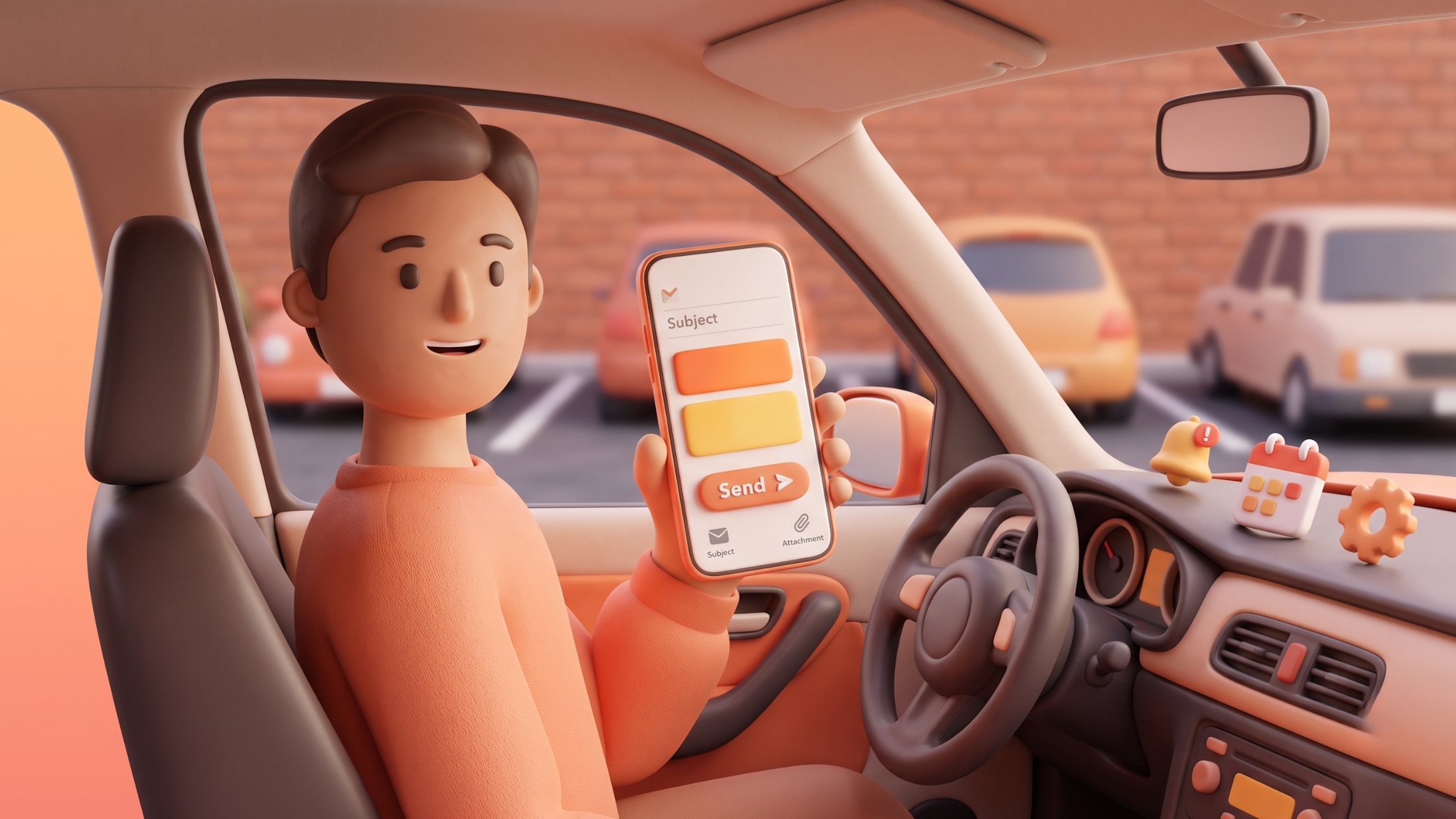
5. Draft a Follow-Up Email Before You Leave the Parking Lot
Also powered by Breeze: right after a call, you can prompt the assistant to draft a follow-up email based on the conversation and CRM context, without switching apps or copy-pasting notes elsewhere. It’s not a finished, ready-to-send email every time — but it’s a genuinely useful head start while the conversation is still fresh.
Best for: keeping follow-up speed high without letting it eat into the next call on your list.
A Few Honest Caveats
None of these features turn the mobile app into a full replacement for the desktop CRM, and it’s worth knowing where the edges are:
- Some users report sync and stability issues — occasional crashes or delays in contacts updating, especially on older app versions. Keeping the app updated helps.
- Field mapping on the scanner is limited — you can’t route a scanned contact into a specific pipeline at the point of capture; a quick edit afterward is often needed.
- It’s not the full web experience — deeper reporting, campaign building, and complex workflow editing are still better suited to a desktop screen.
None of these are reasons to skip the app — just reasons to use it for what it’s genuinely good at: fast capture, fast prep, and fast follow-up, all from your phone.
Key Takeaways
The HubSpot mobile app isn’t just a smaller version of the desktop CRM — it has a handful of features specifically built for people who spend their day away from a keyboard.
Quick recap:
- Business card scanner — turn a physical card into a CRM contact in seconds, for free.
- Breeze meeting prep — get an AI-generated account briefing before you walk into a room.
- Call recordings and transcripts on the go — review conversations from anywhere, with caller ID tied to your CRM.
- One-tap logging after a call — update deals and tasks the moment a conversation ends.
- AI-drafted follow-up emails — a head start on your next message, written with real context.
If the last time you opened the HubSpot app was to clear a notification badge, it’s worth a second look. There’s more in there than most people realize.